Linux 服务器使用 Rclone 挂载 OneDrive
Linux 服务器使用 Rclone 挂载 OneDrive
饼干之前写过挂载 Google Drive 的过程,因为我的 Google Drive 空间不大,而 OneDrive 有 5T 的空间,所以准备把 OneDrive 挂载上去使用。OneDrive 的挂载方法和 Google Drive 大部分是差不多的,但 OneDrive 的授权要麻烦一些。
这里简单记录一下我配置的过程。 **下载安装** 使用脚本下载安装 Rclone:
curl https://rclone.org/install.sh | sudo bash
初始化配置
安装完成后输入:
rclone config
可以看到:
2021/04/14 07:14:46 NOTICE: Config file "/root/.config/rclone/rclone.conf" not found - using defaults
No remotes found - make a new one
n) New remote
s) Set configuration password
q) Quit config
输入 n 新建配置。
name 可以随便输入,
然后会出现挂载的服务类型,如下:
Type of storage to configure.
Enter a string value. Press Enter for the default (“”).
Choose a number from below, or type in your own value
1 / 1Fichier
“fichier”
2 / Alias for an existing remote
“alias”
3 / Amazon Drive
“amazon cloud drive”
4 / Amazon S3 Compliant Storage Providers including AWS, Alibaba, Ceph, Digital Ocean, Dreamhost, IBM COS, Minio, and Tencent COS
“s3”
5 / Backblaze B2
“b2”
6 / Box
“box”
7 / Cache a remote
“cache”
8 / Citrix Sharefile
“sharefile”
9 / Compress a remote
“compress”
10 / Dropbox
“dropbox”
11 / Encrypt/Decrypt a remote
“crypt”
12 / Enterprise File Fabric
“filefabric”
13 / FTP Connection
“ftp”
14 / Google Cloud Storage (this is not Google Drive)
“google cloud storage”
15 / Google Drive
“drive”
16 / Google Photos
“google photos”
17 / Hadoop distributed file system
“hdfs”
18 / Hubic
“hubic”
19 / In memory object storage system.
“memory”
20 / Jottacloud
“jottacloud”
21 / Koofr
“koofr”
22 / Local Disk
“local”
23 / Mail.ru Cloud
“mailru”
24 / Mega
“mega”
25 / Microsoft Azure Blob Storage
“azureblob”
26 / Microsoft OneDrive
“onedrive”
27 / OpenDrive
“opendrive”
28 / OpenStack Swift (Rackspace Cloud Files, Memset Memstore, OVH)
“swift”
29 / Pcloud
“pcloud”
30 / Put.io
“putio”
31 / QingCloud Object Storage
“qingstor”
32 / SSH/SFTP Connection
“sftp”
33 / Sugarsync
“sugarsync”
34 / Tardigrade Decentralized Cloud Storage
“tardigrade”
35 / Transparently chunk/split large files
“chunker”
36 / Union merges the contents of several upstream fs
“union”
37 / Webdav
“webdav”
38 / Yandex Disk
“yandex”
39 / Zoho
“zoho”
40 / http Connection
“http”
41 / premiumize.me
“premiumizeme”
42 / seafile
“seafile”
直接输入序号,比如我挂载的是 OneDrive 就可以输入 26 ,
client_id 可以直接回车默认,
client_secret 也可以直接回车默认,
然后会出现 OneDrive 区域选择,如下:
Choose national cloud region for OneDrive.
Enter a string value. Press Enter for the default (“global”).
Choose a number from below, or type in your own value
1 / Microsoft Cloud Global
“global”
2 / Microsoft Cloud for US Government
“us”
3 / Microsoft Cloud Germany
“de”
4 / Azure and Office 365 operated by 21Vianet in China
“cn”
可以直接输入 1 选择全球,
然后是选择是否进行高级配置,如下:
dit advanced config? (y/n)
y) Yes
n) No (default)
可以输入 n ,
接着是自动配置选择,如下:
Remote config
Use auto config?
- Say Y if not sure
- Say N if you are working on a remote or headless machine
y) Yes (default)
n) No
可以输入 n ,
这里需要获取授权码:
For this to work, you will need rclone available on a machine that has
a web browser available.
For more help and alternate methods see: https://rclone.org/remote_setup/
Execute the following on the machine with the web browser (same rclone
version recommended):
rclone authorize "onedrive"
Then paste the result below:
授权码需要在本地电脑上获取,访问 https://rclone.org/downloads/ 根据你的电脑系统版本下载对应的 Rclone。
下载完成后解压,进入存放 Rclone 的目录,以 Win10 为例,打开 Powershell ,我的 Rclone 放在 E:下载rclone-v1.55.0-windows-amd64 ,我可以输入:
cd E:\下载\rclone-v1.55.0-windows-amd64
在存放 Rclone 的目录可以看到 rclone.exe 的可执行程序,输入:
./rclone authorize "onedrive"
浏览器应该会自动打开,如果浏览器没有打开可以根据提示复制地址访问。如果浏览器登录了 OneDrive 的话会直接显示授权确认信息,如果没有登录的话会弹出登录页面,登录 OneDrive 后也会显示授权确认信息,如下: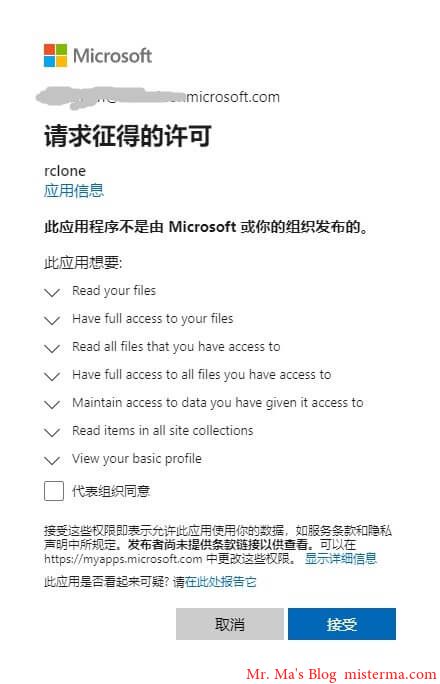
选择 接受 后在本地命令行会显示一串 JSON 格式的授权信息,复制授权信息包括首尾的 {} ,到 Linux 终端粘贴。
然后是选择 OneDrive 的类型,如下:
Choose a number from below, or type in an existing value
1 / OneDrive Personal or Business
“onedrive”
2 / Root Sharepoint site
“sharepoint”
3 / Sharepoint site name or URL (e.g. mysite or https://contoso.sharepoint.com/sites/mysite))
“url”
4 / Search for a Sharepoint site
“search”
5 / Type in driveID (advanced)
“driveid”
6 / Type in SiteID (advanced)
“siteid”
7 / Sharepoint server-relative path (advanced, e.g. /teams/hr)
“path”
可以输入 1 ,
然后会显示找到的 OneDrive 账户,如下:
Found 1 drives, please select the one you want to use:
0: OneDrive (business) id=b!b_xnJJqyBMSVPjgvhvbP8XmJ_M_dMjhzrbhnaWknnbKqNBm8MTqM3kvEtW67P
Found drive 'root' of type 'business', URL: https://xxx-my.sharepoint.com/personal/changbin_xxx_onmicrosoft_com/Documents
Is that okay?
y) Yes (default)
n) No
确认无误后输入 y ,
接着会显示你选择的配置信息,确认无误后输入 y 保存配置。
挂载
输入:
rclone mount configName:OneDriveLocation dir --copy-links --no-gzip-encoding --no-check-certificate --allow-other --allow-non-empty --umask 000
其中的 configName 就是配置名称,OneDriveLocation 就是要挂载的 OneDrive 目录,dir 就是要挂载到的本地目录。
例如我要把一个名为 OneDrive 的配置挂载到本地的 /OneDrive 目录,我可以这样写:
rclone mount OneDrive:/ /OneDrive --copy-links --no-gzip-encoding --no-check-certificate --allow-other --allow-non-empty --umask 000
我这里挂载的是整个 OneDrive 网盘,所以我写的是 OneDrive 的根目录 / 。
挂载完成后不会显示任何内容,可以再开一个终端,输入 df -h 查看磁盘空间,如下:
Filesystem Size Used Avail Use% Mounted on
devtmpfs 1.5G 0 1.5G 0% /dev
tmpfs 1.5G 0 1.5G 0% /dev/shm
tmpfs 1.5G 153M 1.4G 11% /run
tmpfs 1.5G 0 1.5G 0% /sys/fs/cgroup
/dev/vda1 57G 26G 29G 48% /
tmpfs 301M 0 301M 0% /run/user/0
OneDrive 5.0T 1.1T 4.0T 21% /OneDrive
挂载完成后进入挂载的目录就可以看到 OneDrive 的文件了,上传文件可以直接拷贝到挂载目录,下载也是直接拷贝到本地目录。
挂载出错
如果在挂载的时候出现了类似下面的提示:
2021/03/04 18:58:16 Fatal error: failed to mount FUSE fs: fusermount: exec: "fusermount": executable file not found in $PATH
需要安装 fuse。
CentOS/Fedora 安装 fuse:
yum install -y fuse
Ubuntu/Debian 安装 fuse:
apt install -y fuse